
How to find duplicate files in Windows 11
Use PowerShell to identify duplicate files in Windows 11 without deleting them. Free tools are also available for file management.
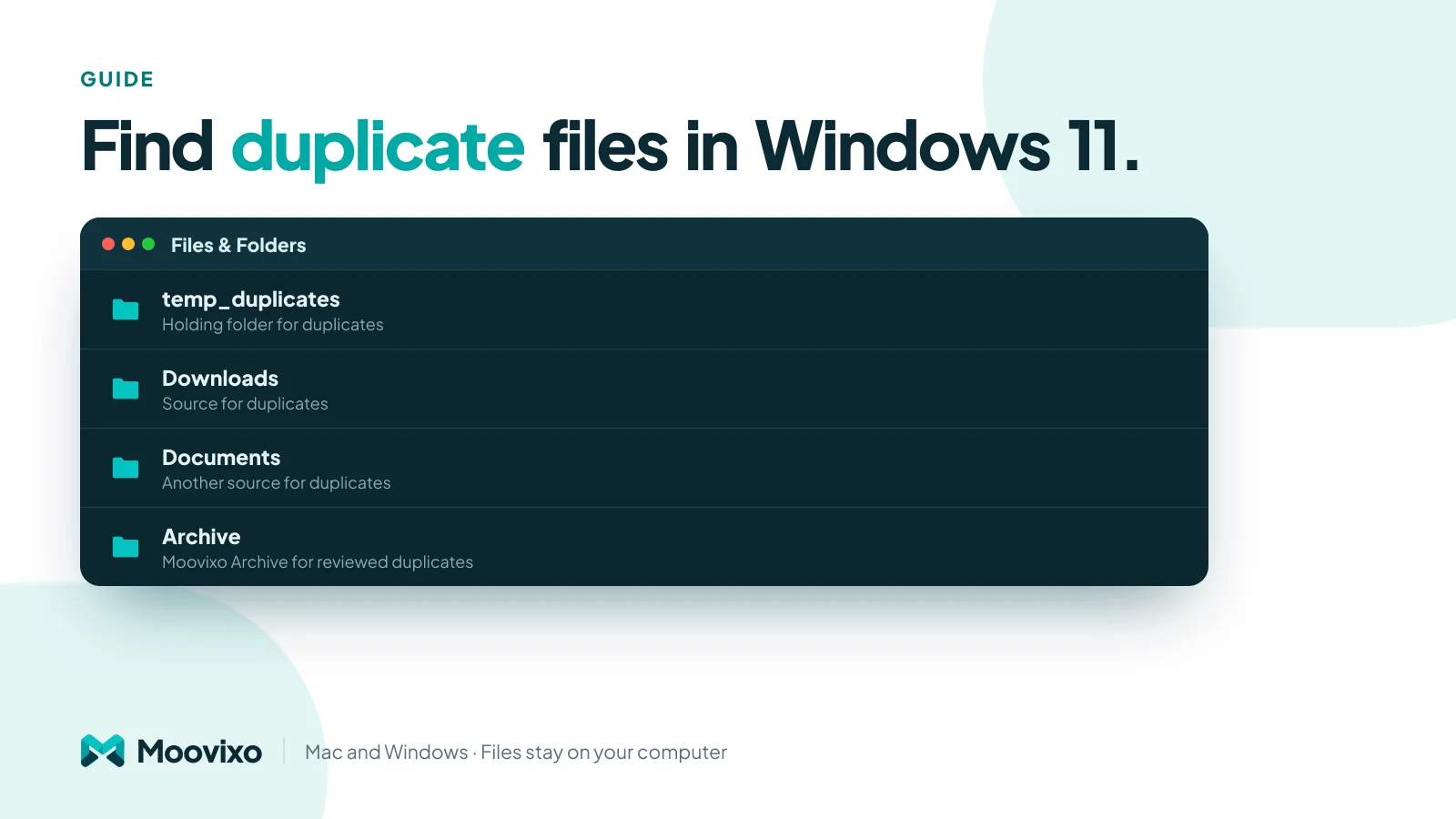
Identical files can accumulate on your computer without your notice, often from downloads, email attachments, and backups. If you’re using Windows 11, finding these duplicates can be a challenge. There’s no built-in tool specifically for this task, but several methods can help you locate and manage these files effectively.
Finding duplicates with PowerShell
PowerShell is a powerful tool that can help you identify duplicate files. It uses a method called hashing to generate a unique value for each file based on its contents. This allows you to discover duplicates, even if they have different names.
Begin by using the Get-FileHash command alongside Group-Object. Execute this command in PowerShell:
Get-ChildItem -Path 'C:\path\to\folder' -Recurse | Get-FileHash | Group-Object -Property HashMake sure to replace 'C:\path\to\folder' with the actual path of the folder you want to examine. This command will recursively scan the specified folder, generating hashes for each file and grouping them by these hashes. The output will display identified groups of duplicate files according to their hash values.
Understanding file hashing
File hashing ensures you identify duplicates based on their content rather than their names. Two files may carry different names but still have identical content, making them duplicates. Hashing computes a fixed-size string from the content of each file; if two files result in the same hash, they are indeed identical. This approach is reliable for effective file management.
Using free tools for duplicates
If PowerShell seems too complex, you can opt for free tools available for Windows like CCleaner or Duplicate Cleaner. These applications provide a user-friendly interface that allows you to scan folders and identify duplicates quickly. Their straightforward approach can save you considerable time compared to manual searching through files.
Creating a holding folder for duplicates
Rather than deleting duplicates immediately, it’s wiser to move them to a temporary holding folder. This allows you to review them and make informed decisions later. Here’s how to create a holding folder and use it:
- Create a temporary folder, for example,
D:\temp_duplicates. - To move duplicates, execute a command like this:
- Again, replace
'C:\path\to\duplicate\file'with the path of the duplicate file you wish to move.
Move-Item -Path 'C:\path\to\duplicate\file' -Destination 'D:\temp_duplicates'Regular maintenance to avoid duplicates
Making regular checks for duplicates a part of your routine is important. Schedule time to look through folders like Downloads and Desktop, where clutter tends to gather frequently. Combine this habit with a few organizing strategies:
- Establish clear categories for your files from the start to identify where each item belongs more easily.
- Use descriptive filenames. Avoid vague titles like
document(1)that won’t help you find files later. - Label files by their purpose or date, which can facilitate quicker retrieval during busy times.
How Moovixo manages duplicates
Moovixo automates much of the file management process, including handling duplicates. Instead of outright deleting them, it archives duplicates into a designated folder. This ensures that nothing gets permanently lost. You can review these archived items to decide later which files to keep or delete. Such an approach keeps your important documents secure without unnecessary risk.
With Moovixo, your files are organized based on your usage patterns, making it easier to locate what you need. Without the anxiety of losing important invoices or documents, you can focus on more pressing tasks.
Getting started with Moovixo
Ready to enhance your file organization? You can try Moovixo free for 7 days. This trial allows you to manage files effectively while identifying duplicates, all while ensuring that important files remain protected. For details on how Moovixo handles files responsibly, visit our safety page.
Keep reading
How to organize tax documents for your accountant
Gather the records your accountant needs, sort them by tax year, and send a checked set with a clear note about anything missing.
A digital filing system for small business
Set up business folders for clients, finance, HR and legal paperwork, with clear names, sensible access and a yearly handover to your accountant.
How to find duplicate files on Mac
Find duplicate downloads, check identical files in Terminal, and set extra copies aside without deleting something you still need.