
How to organize screenshots on Mac
Save screenshots somewhere other than your Desktop, give useful captures clear names, and find them later by subject or text.
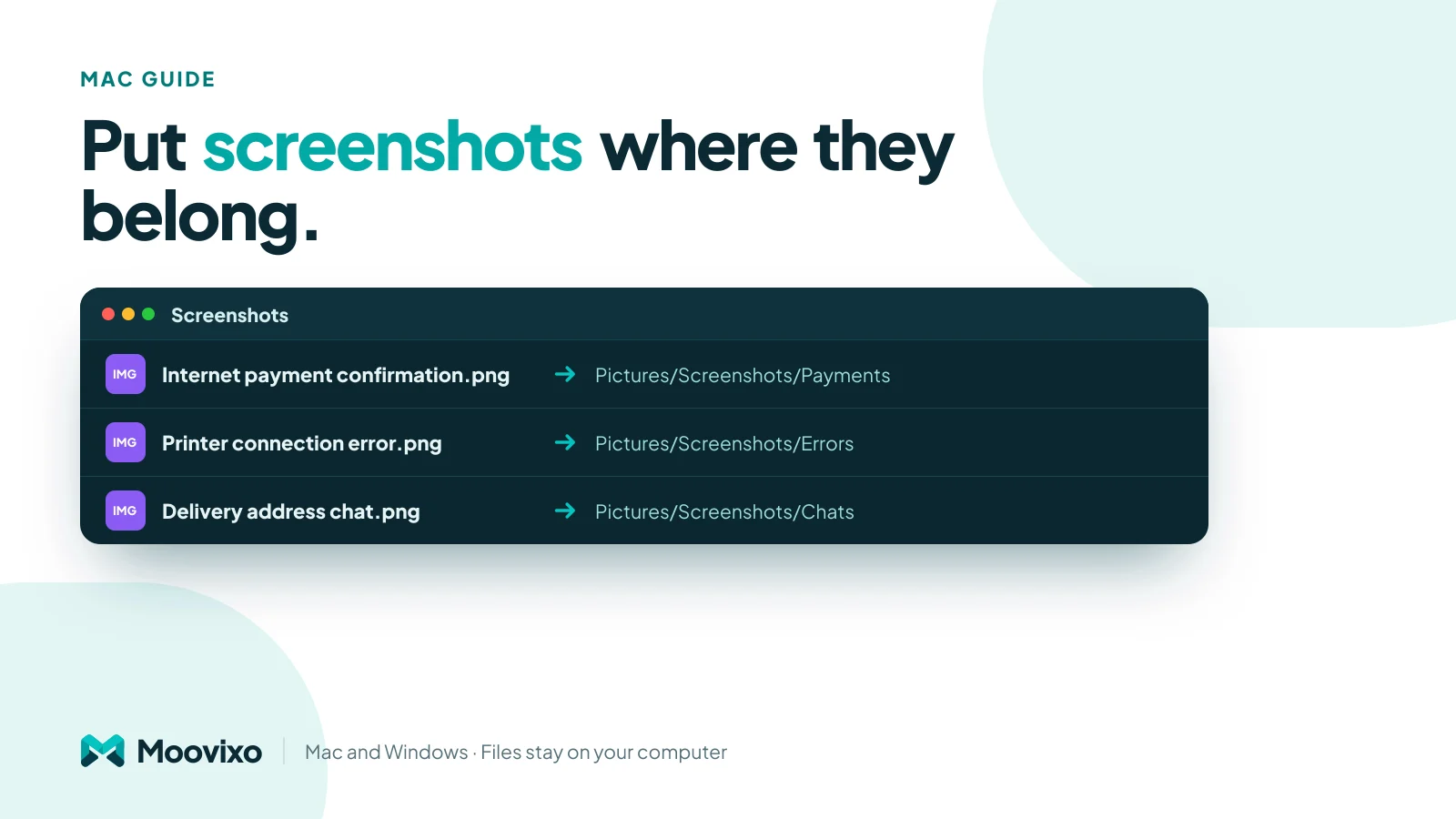
Your Desktop is full of nearly identical screenshot thumbnails, and the payment confirmation you need looks like every other white rectangle. Give new captures one home, then sort only the ones you’ll want again.
Save new screenshots in one folder
In Finder, open your Pictures folder and choose File → New Folder. Name it Screenshots. Keep it separate from camera photos so you don’t have to browse receipts and error messages alongside vacation pictures.
Press Command+Shift+5 to open the screenshot toolbar. Under Save to in the Options menu, click Other Location and select your new Pictures/Screenshots folder. New screenshots will go there instead of the Desktop until you change the setting.
Take a test capture. Check that it arrived. Screenshots copied to the Clipboard rather than saved won’t create files in this folder.
Existing screenshots stay put. Open Desktop in Finder, select the captures you recognize, and check the selection before dragging them into Screenshots. If they’re mixed with documents and other images, work in small batches rather than moving every PNG just because screenshots often use that format. If Finder reports a name conflict, stop and compare the files. Don’t replace one without checking.
For the rest of the Desktop, see the separate guide to organizing files on Mac.
Sort by what the screenshot shows
You’ll look for a payment confirmation because you need proof of payment, not because you need an image. Give it a folder that reflects that.
Create categories as you need them. Your folders might eventually look like this:
Pictures/
  Screenshots/
    Payments/
    Errors/
    Chats/
Leave new captures directly inside Screenshots until you’ve used them. After sending an error image to support or checking a payment, move anything worth keeping into its folder, leaving the top level for captures you haven’t dealt with yet.
Sometimes the project matters more than the category. An error on a client’s website may belong beside that project, rather than among unrelated printer and Wi-Fi errors. Pick the place you’d look first. Extra copies make it harder to tell which one you’ve already dealt with.
Keep captures from the same conversation together. You may need several images to understand what was agreed, and splitting an exchange between Payments, Deliveries, and Chats makes it harder to reconstruct later.
Skip monthly subfolders for now. Twelve screenshots don’t need twelve folders. Add date folders only when the collection becomes awkward to browse.
Rename the captures you’ll need again
The default screenshot name tells you when you took it, but not why you kept it. For something you’ll need later, select the file in Finder and press Return to rename it.
Try 2026-11-03 Internet payment confirmation.png, Printer connection error.png, or Delivery address chat.png. Keep the file extension unchanged. If Finder hides extensions, don’t add one yourself.
A date at the beginning keeps recurring records in order when you sort by name. Use the payment or conversation date when you know it, rather than the day you filed the image. If you don’t know the event date, leave it out or label it as the capture date. Don’t guess.
Rename payment records, instructions you’ll reuse, and errors that keep coming back. Temporary captures taken to show someone a button don’t deserve the same attention. Naming every one is busywork.
Keep passwords and private conversation details out of names, which can appear in search results, shared screens, and attachments. Delivery address chat.png is enough. The full address doesn’t belong there.
Find screenshots by name and date first
Press Command+Space to open Spotlight and enter a distinctive part of the name, such as Internet payment. That’s more useful than another default screenshot name.
No result? Open Screenshots in Finder, choose View → as List, then click the Date Modified column heading to sort by date. Click again to reverse the order. Browsing the week you remember can be quicker than trying five different search phrases.
Treat file dates as clues, not proof. The capture date, the date the file changed, and the payment date shown inside it can all differ. A screenshot taken today might show last month’s transaction.
Searching file names isn’t the same as searching words inside an image. A result for Internet payment may simply match the name you gave the file, rather than mean your Mac has read the confirmation.
Use Live Text without expecting every image to be searchable
On a Mac that supports Live Text, open a screenshot in Preview and try selecting the words in the image. If they’re recognized, you can copy an error message or transaction reference instead of typing it again.
This helps with long error codes. Copy the exact message into a support request, or put a short, distinctive part of it in the screenshot’s name. Keep the original image too. The surrounding window may explain something the copied words don’t.
Live Text selection and Spotlight search are separate functions. Selecting words in an open image doesn’t guarantee that Spotlight will find the file by those words.
Test it first. Pick a screenshot you already know and search Spotlight for a distinctive phrase visible inside it, preferably one that isn’t in the file name. If the image appears, you have another way to find it on your setup. Otherwise, use the folder, date, or descriptive name.
Tiny text, low contrast, and unsupported languages can cause recognition errors. Live Text availability depends on your Mac and macOS version, while Spotlight results depend on what it supports and indexes. Check copied amounts and reference numbers against the image before using them. One wrong digit matters.
Let content-based filing handle repeat captures
For a few screenshots a week, a dedicated save folder and occasional manual filing are enough. Automation is more useful when payment confirmations and error captures arrive faster than you sort them.
Moovixo reads screenshot text on your computer and can recognize payment confirmations and development errors. It files them into folders such as Pictures/Screenshots/Payments and Pictures/Screenshots/Development, preferring suitable folders you already have. Search uses the recognized text too, so you aren’t relying only on file names.
Content reading is off in privacy mode. The features page explains screenshot recognition and search.
Keep chats as a manual category. Don’t assume an organizer can keep an exchange together or know where it belongs when the answer depends on who you were speaking to and what you agreed.
Moovixo’s first run shows a preview before anything moves, and moves can be undone. Start with your Screenshots folder and check the suggested destinations, especially if you keep project errors beside the work rather than in a general error folder.
Keep reading
How to organize tax documents for your accountant
Gather the records your accountant needs, sort them by tax year, and send a checked set with a clear note about anything missing.
A digital filing system for small business
Set up business folders for clients, finance, HR and legal paperwork, with clear names, sensible access and a yearly handover to your accountant.
How to find duplicate files on Mac
Find duplicate downloads, check identical files in Terminal, and set extra copies aside without deleting something you still need.