
How to organize your Downloads folder (and keep it that way)
Clear out Downloads in an afternoon, then stop it filling up again. Practical steps for Mac and Windows.
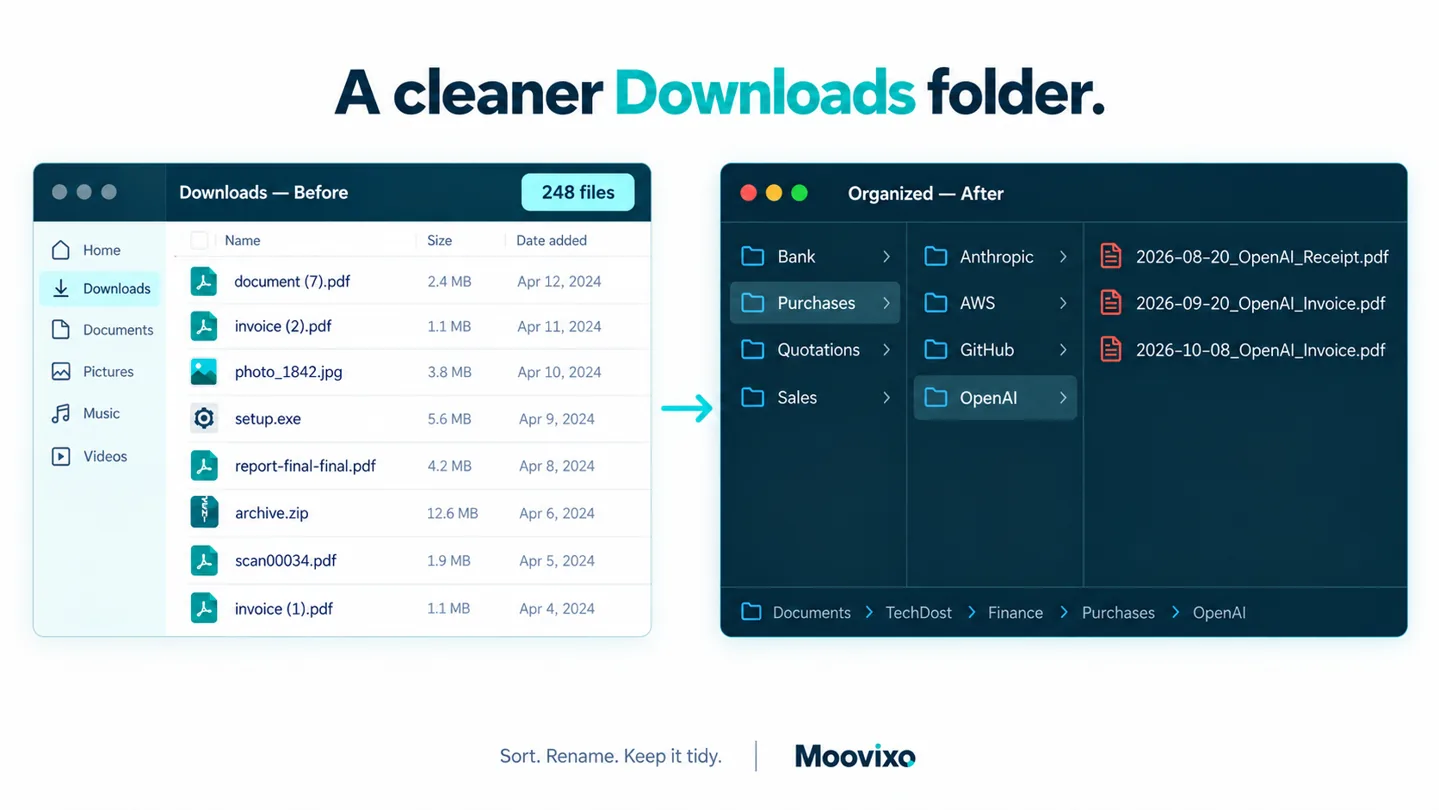
Nobody sets out to have a messy Downloads folder. You grab an invoice for a form, a zip someone sent you, an installer, a screenshot you meant to delete. Each one takes two seconds. A year later there are a few thousand files in there, and the one you need is called document (7).pdf.
Cleaning it up once is the easy part. Keeping it that way is where most people give up, so this covers both.
Sort by date first
Open Downloads and put the newest files at the top. In Finder on a Mac, choose View → Sort By → Date Added. In File Explorer on Windows, switch to the Details view and click the Date modified column. Anything from the last couple of weeks you probably still need. Anything older than a few months you almost certainly don't need where it is.
Clear the easy stuff
Three kinds of file make up most of the pile, and none of them take much thought:
Installers (.dmg, .pkg, .exe, .msi). If the app is installed, the installer has done its job. You can download it again in a minute if you ever need it.
Zips you've already opened. Check the unzipped folder has everything in it. After that the zip is just a second copy.
Copies like
report (1).xlsxandreport (2).xlsx, or the same PDF downloaded on two different days.
If deleting makes you nervous, move them into a folder called Archive and leave it for a month. If you haven't opened it by then, you won't miss it.
Give everything else a home
You don't need a clever system. A few folders cover most people: one for money (bills, invoices, bank statements, tax papers), one for each client or big project, one for personal documents like IDs and certificates, and Pictures for photos and screenshots. If you already have folders like these, use them instead of starting over. A structure you invented last weekend is easy to forget. The one you've used for years isn't.
Rename what you'll look for later
scan00034.pdf and IMG_4471.jpg mean nothing six months on. For files you'll want again, put the date first, then who it's from, then what it is: 2026-09-29 Amazon invoice.pdf. With the date at the front, files line up in order by themselves. You don't need to do this for everything, only the files you'd be annoyed to lose.
Stop it filling up again
A few settings help more than any amount of willpower:
Ask where to save. Chrome, Edge, Firefox and Safari can all ask where each download should go. It's one extra click, and the file lands in the right folder straight away.
Let Windows tidy old files. On Windows 10 and 11, Storage Sense (Settings → System → Storage) can remove files from Downloads that you haven't opened in 30 or 60 days. Only switch it on after you've moved out anything you care about.
Look once a week. Five minutes on a Friday is plenty when the folder only holds a week of files.
Or hand it to an app
The weekly look works if you actually do it. Most of us don't, which is why we built Moovixo. It watches Downloads, or any folder you pick, works out what each new file is from its name and what's inside it, and moves it into the folders you already use. The first run only shows you a plan, nothing moves until you approve it, and every move can be undone.
Keep reading
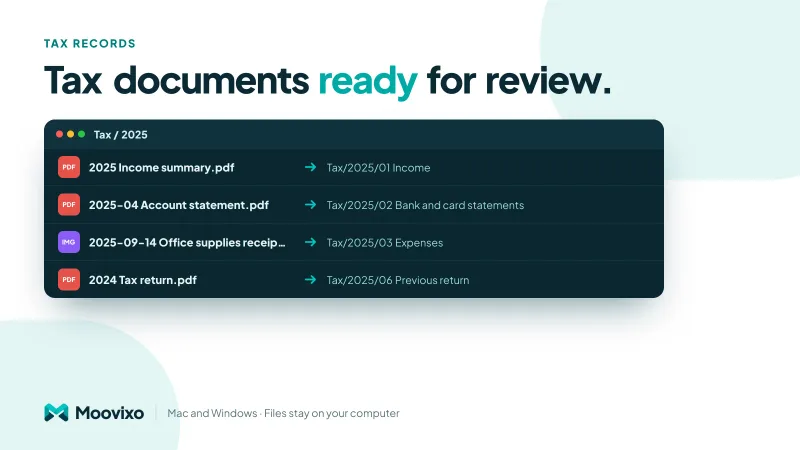
How to organize tax documents for your accountant
Gather the records your accountant needs, sort them by tax year, and send a checked set with a clear note about anything missing.
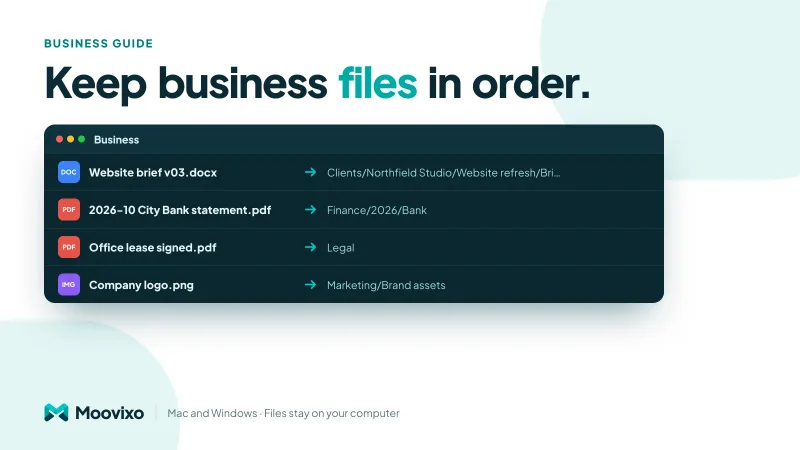
A digital filing system for small business
Set up business folders for clients, finance, HR and legal paperwork, with clear names, sensible access and a yearly handover to your accountant.
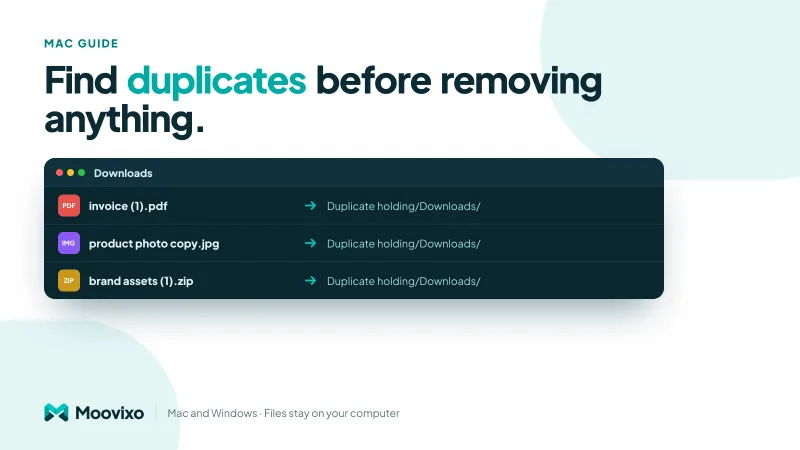
How to find duplicate files on Mac
Find duplicate downloads, check identical files in Terminal, and set extra copies aside without deleting something you still need.