
Moovixo vs Hazel: rules you write, or folders it learns
Hazel does exactly what your rules say. Moovixo works from the folders you already have. An honest look at which one suits you, and what to use on Windows.
If you've used a Mac for a while, you've probably come across Hazel. It has been the standard answer to "how do I keep my Mac tidy without doing it myself" for well over a decade, and it has earned that.
So when people look at Moovixo, the obvious question is how the two compare. Here's our honest answer, including the cases where we'd tell you to buy Hazel instead.
The short version
Hazel does exactly what your rules tell it to, and nothing else. Moovixo works out where a file should go by looking at what the file is and at the folders you already have, and it asks you when it isn't sure.
Neither approach is better across the board. They suit different people.
How Hazel works
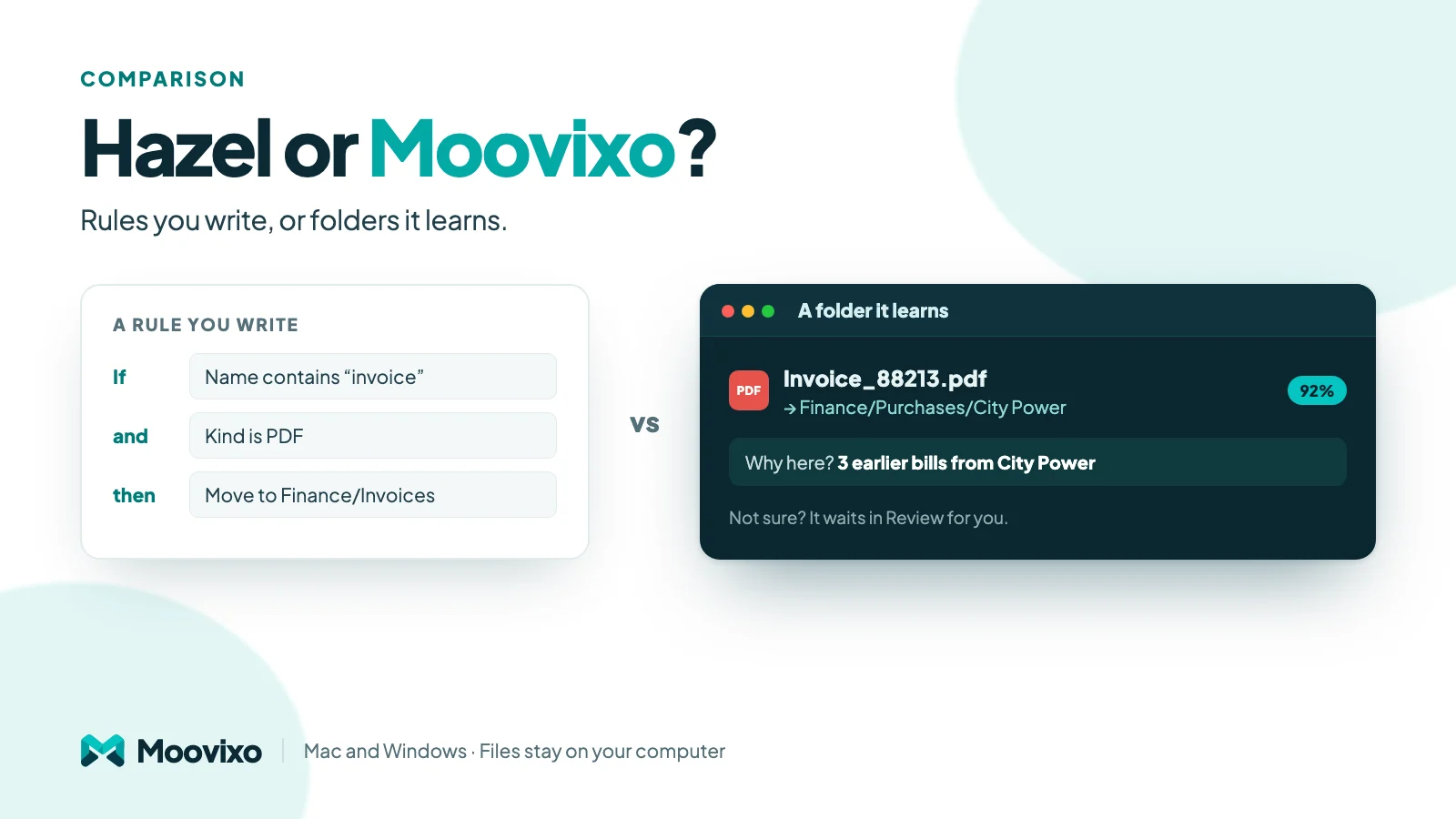
You point Hazel at a folder and write rules for it. Each rule is a set of conditions (the name contains "invoice", the kind is PDF, it was added more than a week ago, it came from a particular website) and a set of actions (move it, rename it, tag it, run a script). Hazel keeps an eye on the folder and applies whichever rules match.
It's precise. If you want every statement from your bank renamed with its date and dropped into a folder for that year, you can build exactly that, and it will keep doing exactly that for years. Hazel 6 added text recognition and a way to revert files it has processed, and it still does the Mac housekeeping it's known for: cleaning up the leftovers when you delete an app, and clearing old files out of the Trash.
The catch is that you have to think of every case in advance. A new kind of file sits where it landed until you notice it and write a rule. And good rules take some fiddling to get right. For some people that's half the fun. For everyone else it's a chore that never quite gets finished.
How Moovixo works
Moovixo doesn't start with rules. When a file arrives in a folder it watches, it reads the name, checks what kind of file it really is, and reads the text inside (PDFs, scans, Word and Excel files, emails). Then it looks at how your folders are already arranged and picks the one that already holds that sort of file. An electricity bill goes next to last month's electricity bill, wherever you happen to keep those.
Every suggestion comes with a confidence score and a reason you can read, like "3 earlier bills from City Power". If it's sure enough, it moves the file. If it isn't, the file waits in Review until you decide. Correct a destination twice and it remembers. You can still give it rules, but you write them in plain words: "Anything about the home loan goes in my Home Loan folder."
So the trade-off runs the other way. You don't get Hazel's step-by-step control. You do get something that copes with files you'd never have thought to write a rule for.
When Hazel is the better choice
You like writing rules and want to decide exactly what happens to every file.
You want rules that run shell scripts or AppleScript, or that set Finder tags and color labels.
You want app cleanup and Trash management in the same app as your filing.
You only use Macs, running macOS 13 Ventura or later.
If that sounds like you, get Hazel. It's a well-made app with a long track record, and we're not going to pretend otherwise.
When Moovixo fits better
You don't want to write rules, or you tried once and gave up.
You use Windows, or a Mac at home and a PC at work. Hazel is Mac only.
Your mess is mostly documents (invoices, statements, payslips, contracts, scans), where what's written inside matters more than the file name.
You want to search for files by what they say, not only by what they're called.
You'd like a heads-up before a bill is due or a warranty runs out. Moovixo reads those dates from your documents and reminds you.
Deleting and undoing
Both apps can be trusted with real files, but they take different positions on deleting them. Hazel can send files to the Trash when a rule says so, which is handy for clearing out old downloads and painful when a rule turns out to be wrong. Moovixo never deletes anything. Duplicates and clutter go to an archive folder you can open, and every move can be undone, from a single file to everything it has ever done. The very first run doesn't move anything at all: you get a plan to look over, and you decide.
Price and platforms
As of October 2026:
Hazel 6: $42 for a single license, $65 for a family pack (up to five people in one household), or $20 to upgrade from an older version. Mac only, macOS 13 or later, with a 14-day free trial.
Moovixo: $29, one-time, for a lifetime license (the first 50 licenses are $9). It covers one computer at a time, Mac or Windows, and you can move it to a new one. macOS 11 or later, or 64-bit Windows 10 and 11. Free for 7 days, with no card and no account.
Neither is a subscription, which is how we think a small utility should be sold.
Can you use both?
Yes. Just don't let them watch the same folder, or they'll trip over each other moving the same files. A setup that works well: Hazel looks after the folders where you have precise, scripted jobs, and Moovixo looks after Downloads and the Desktop, where anything can turn up.
Is there a Hazel for Windows?
No. Noodlesoft only makes Hazel for the Mac. If you're on Windows and want something along the same lines, these are the usual options:
DropIt is free and open source. You build rules from names, sizes, dates or regular expressions, and it can check folders on a timer. It's capable, but its last version came out in 2018.
File Juggler is a paid app that also runs on rules you write, and it can read the text inside a file to decide what to do with it.
Moovixo works on Windows 10 and 11 the same way it does on a Mac.
We've written a longer guide to organizing files automatically on Windows 11, including a free way to do it with a short script.
See it with your own files
The quickest way to find out whether Moovixo suits you is to point it at your Downloads folder. The first run only shows a plan, so you see what it would do with your real files before anything moves. Don't like the plan? Close it, and nothing has changed. Download Moovixo and give it a week.
Keep reading
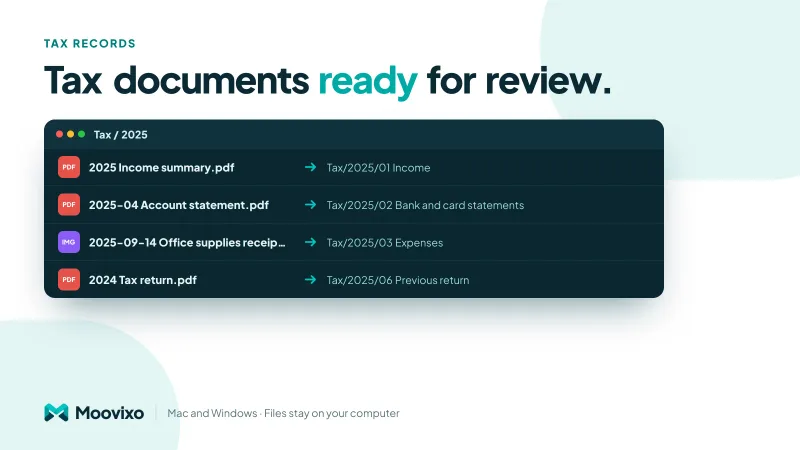
How to organize tax documents for your accountant
Gather the records your accountant needs, sort them by tax year, and send a checked set with a clear note about anything missing.
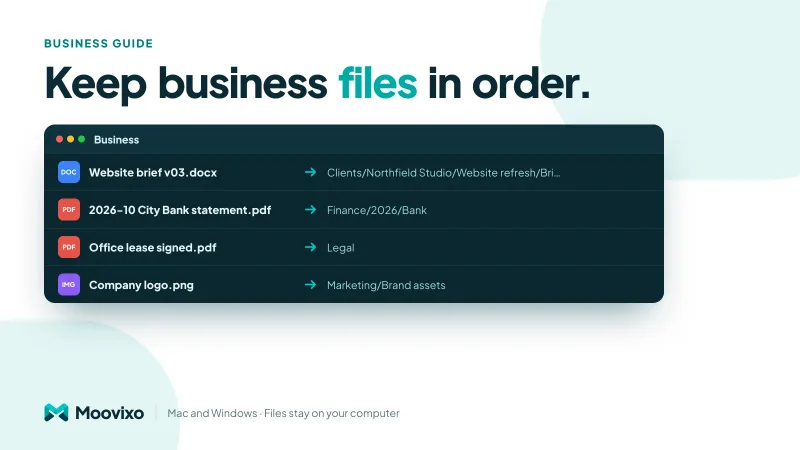
A digital filing system for small business
Set up business folders for clients, finance, HR and legal paperwork, with clear names, sensible access and a yearly handover to your accountant.
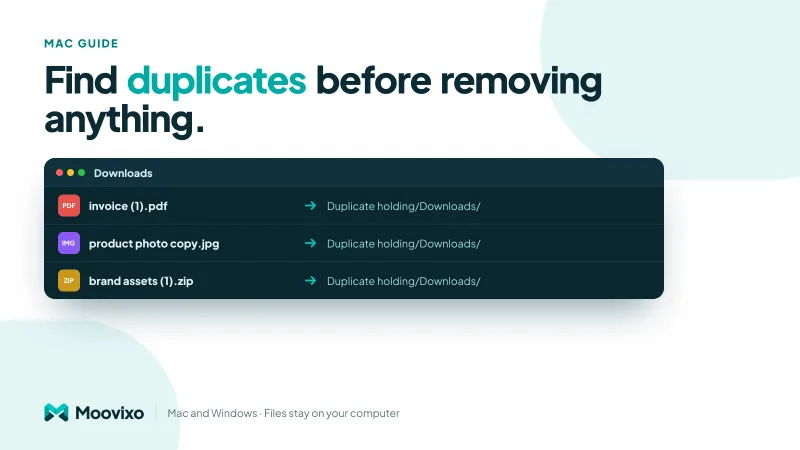
How to find duplicate files on Mac
Find duplicate downloads, check identical files in Terminal, and set extra copies aside without deleting something you still need.