
How to organize invoices and receipts on your computer
A folder setup for invoices, receipts and statements that still works at tax time, and how to stop them piling up in Downloads in the first place.
It usually starts with an email from your accountant, or a form asking for "proof of purchase". You know the invoice exists. You downloaded it. It's somewhere in Downloads, or still in your inbox, or it's the photo you took of a paper receipt back in March. Twenty minutes later you've found three of the seven you need.
Keeping invoices in order isn't difficult. It needs a place for each one, and a habit that takes less effort than not bothering. This is the setup we'd suggest, whether it's for a household or a small business.
One folder for money
Start with a single folder for anything financial. Call it Finance, Money or Accounts, whatever you'll recognize at a glance. Everything below lives inside it, so when someone asks for paperwork there's only one place to look.
If you run a business, split sales from purchases
The first thing your accountant needs to know about any invoice is whether you sent it or received it. So make that the first split:
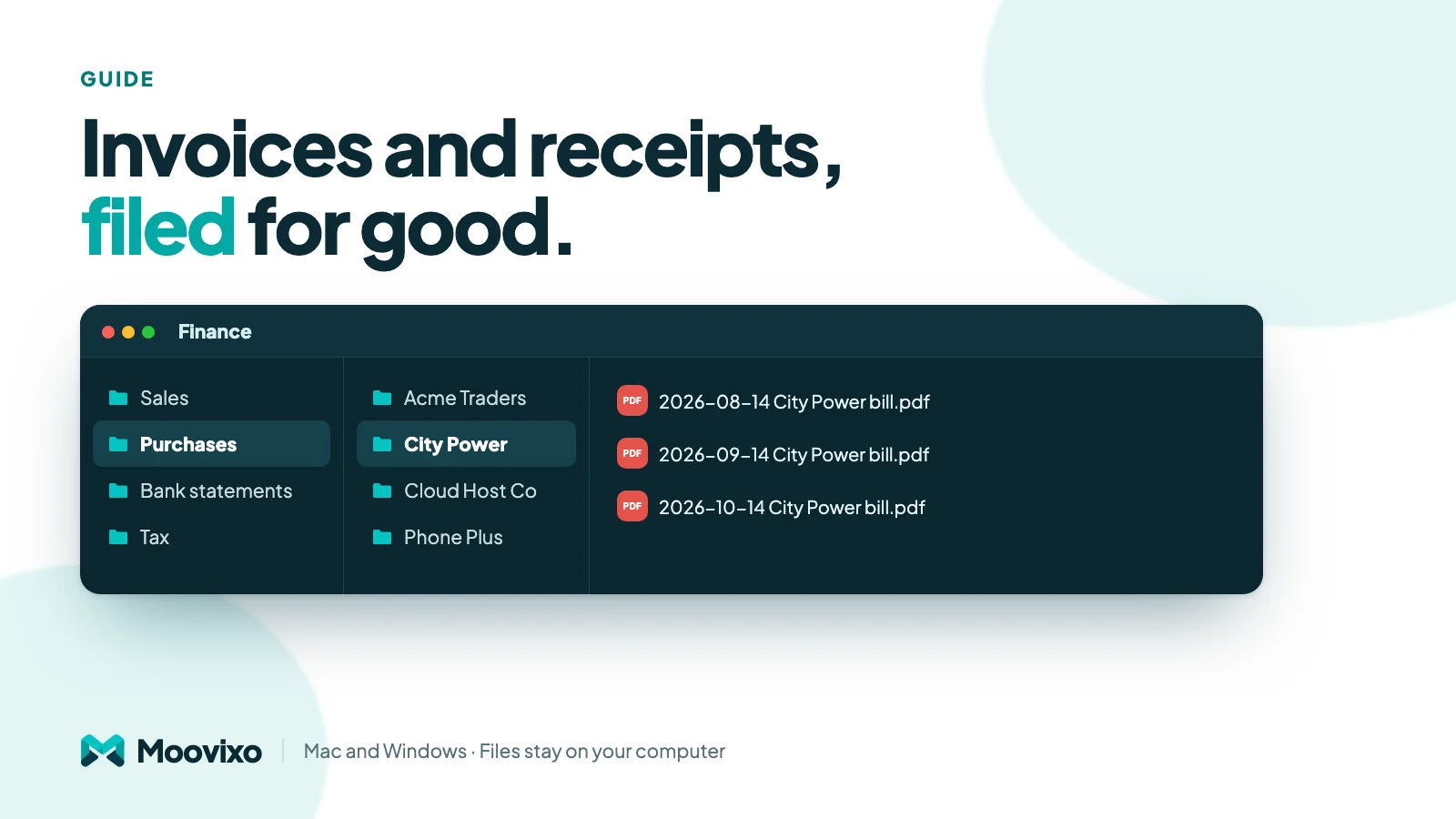
Sales, with a folder for each customer. These are the invoices you issued.
Purchases, with a folder for each vendor: bills, invoices and payment receipts you received.
Bank statements, with a folder for each bank or card.
Tax, for returns, GST or VAT filings, and anything the tax office sends you.
A folder per customer and per vendor sounds like a lot of folders, but it's what makes questions like "how much did we spend on software last year?" answerable in a minute. You don't have to create them up front, either. Give a vendor its own folder when their second invoice turns up, and let one-off purchases sit in Purchases on their own.
At home, group by who it's from
For personal paperwork you don't need sales and purchases. Group by who sent it instead: the electricity company, your phone provider, the bank, the insurer. When you need the last three electricity bills, they're all in one place, in order.
Put the year in the name, not the folder
A lot of people make a folder for each year and put everything inside. It feels tidy, but it splits every vendor across several folders, and every January you're not quite sure which year a December bill belongs to.
Put the date at the start of the file name instead, year first:
2026-09-14 City Power bill.pdf
2026-10-02 Acme Traders invoice 0073.pdf
The files then sort themselves into date order, and you can still see a whole year at a glance. If one vendor's folder gets really long, that's the time to add year folders inside it, for that vendor only.
Get the paper ones into the same place
Paper receipts fade, and the ones that matter (warranties, big purchases, anything you might claim as an expense) are worth scanning. You don't need a scanner for this. Notes on an iPhone can scan documents, and so can the Google Drive app on Android. Save the scan into the right folder with a proper name on the same day. Then either throw the paper away or keep it in one envelope per year, if your tax rules ask for originals.
Catch the ones still in your email
Plenty of invoices never become files at all. They sit as attachments in your inbox. Once a month, search your email for invoice, receipt and bill, and save anything new into the right folder. Done monthly, it takes ten minutes. Left for a year, it takes an afternoon.
Watch out for duplicates
The same invoice often turns up twice: once by email, once downloaded from the vendor's website, or downloaded again because you couldn't find the first copy. Keep one. If you're not sure two files are identical, keep both until you've checked. An extra copy costs you nothing. A missing invoice can cost you a deduction.
At the end of the year
When it's time to hand everything over, send a copy, not your working folders. Copy the year's invoices, receipts and statements into one folder, zip it, and include a short list of what's in there. Your accountant gets everything in one go, and your own folders stay exactly as they were.
Or let Moovixo do the filing
All of this works, as long as you keep doing it. If you'd rather not, Moovixo does the filing for you, on your own computer:
It reads who issued each invoice and who it's billed to. Once it knows which company is yours, invoices you send go to Sales under the customer, and invoices you receive go to Purchases under the vendor.
Vague names get fixed.
scan00034.pdfbecomes something like2026-09-29_Amazon_Invoice.pdf, and the old name still finds it in search.Scanned and photographed invoices are read with the text recognition built into macOS and Windows, so a photo of a paper bill gets filed like any PDF.
If you already have folders like Income and Expenses, it files into those instead of making new ones.
A second copy of the same invoice goes to an archive folder. Nothing is deleted.
At the end of the year, Tax pack copies the year's invoices, receipts, payslips, statements and tax documents into one zip with an index, for the calendar year or the Indian financial year (April to March).
Nothing is uploaded, and there's no account to create. Moovixo is free for 7 days on Mac and Windows, and the first run shows you where everything would go before a single file moves.
Keep reading
How to organize tax documents for your accountant
Gather the records your accountant needs, sort them by tax year, and send a checked set with a clear note about anything missing.
A digital filing system for small business
Set up business folders for clients, finance, HR and legal paperwork, with clear names, sensible access and a yearly handover to your accountant.
How to find duplicate files on Mac
Find duplicate downloads, check identical files in Terminal, and set extra copies aside without deleting something you still need.