
How to search file contents in Windows 11
Make File Explorer search inside documents, not just file names. Fix indexing settings and work out why some PDFs and scans still don't appear.
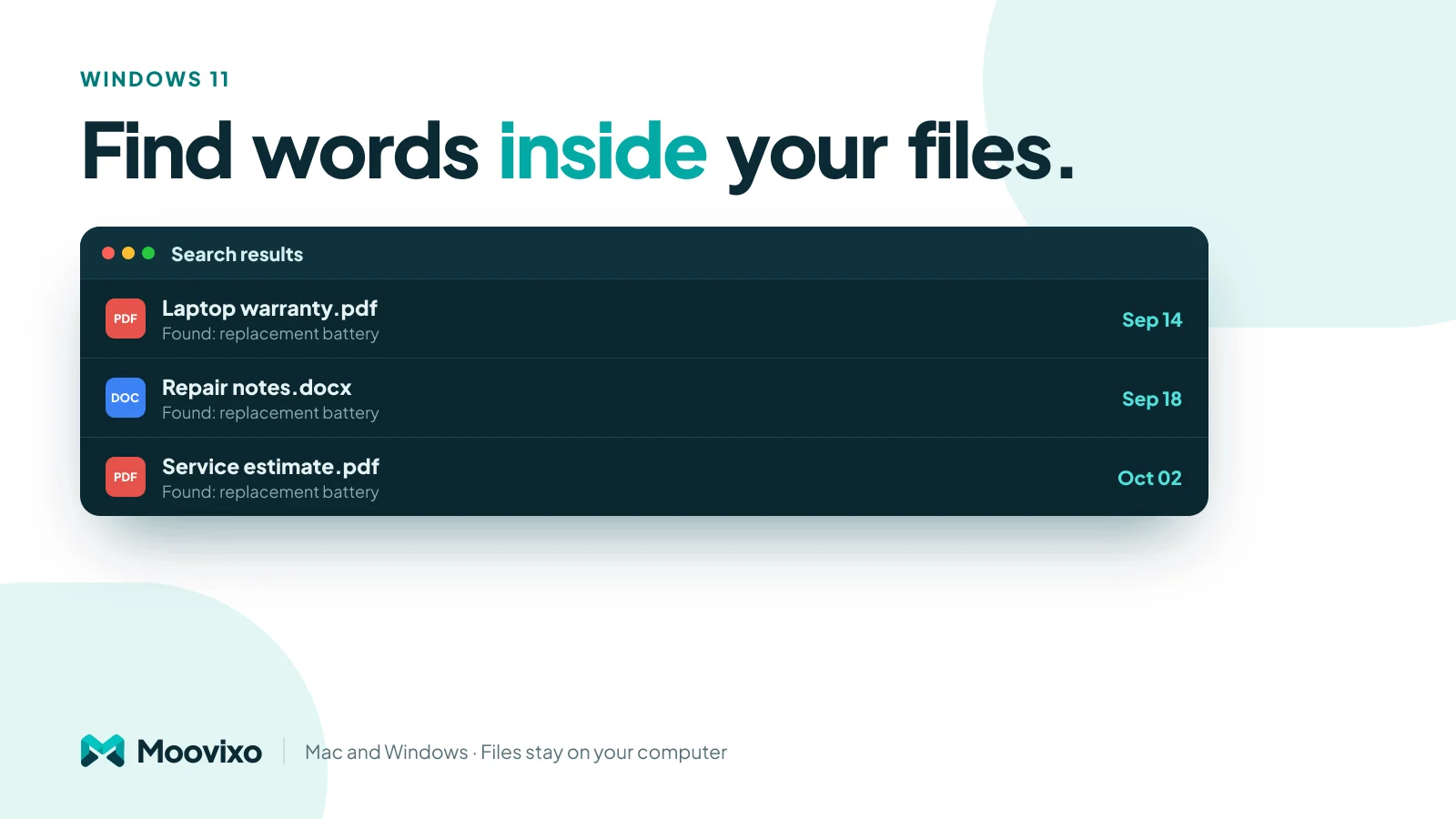
You remember “replacement battery” from a document, but the file is called document (3).pdf. Searching by name isn't helping.
Open the folder where you think you saved it in File Explorer. Click the search box at the top right, type this, and press Enter:
contents:"replacement battery"The contents: part tells Windows to search inside files. Quotes search for the words as a phrase. No results doesn't mean the document is missing, though. Windows may not have indexed that folder, may be indexing only file properties, or may not be able to read the text.
Include the folder in the search index
Start with your document folders, not the whole drive. There's little reason to index every app folder just to find a bill.
Open Start, type Indexing Options, and open the matching control panel. Choose Modify, expand the folder tree, and select the folder holding your documents. You may need Show all locations to reach it. Click OK.
Including Documents and its subfolders would cover both of these files:
Documents/
  Finance/
    2026-09-14 City Power bill.pdf
  Projects/
    Battery replacement notes.docx
Select the folder's actual location. If Documents is inside OneDrive or you've moved it to another drive, that's the location you need.
Give indexing time to finish. The Indexing Options window shows its progress, and a folder with years of paperwork won't become fully searchable the moment you add it.
Online-only files are another catch. You can see their names without their contents being stored on your computer. For a OneDrive document you need to search locally, right-click it and choose Always keep on this device. Let it download, then allow time for indexing.
Turn on content indexing for the file type
A folder can be indexed without the text inside its files being indexed. Open Indexing Options → Advanced → File Types, select the extension you're trying to search, such as docx or pdf, and check the choice below the list.
Index Properties Only covers the file name and other available metadata. To search words inside the document, choose Index Properties and File Contents.
That setting isn't enough on its own. Windows also needs a content filter that can extract text from the format. The filter description shown for the selected extension can help you check what's available.
A PDF with selectable text can still be absent from results if its folder isn't indexed, content indexing is off, or the PDF filter can't read it correctly.
Check those settings before rebuilding the index. If they're right but results remain incomplete after indexing finishes, try Indexing Options → Advanced → Index Settings → Rebuild. Searches may miss files while the index is rebuilt. Don't start here: rebuilding won't fix an unreadable format or add text to a scanned page.
Narrow the search without changing your folders
Search from the smallest likely folder. For an insurance document, open your insurance or Finance folder rather than starting at This PC. You'll have fewer unrelated results to inspect.
A phrase you remember from the page is a good starting point:
contents:"replacement battery"To limit the search to PDFs, add the extension:
ext:pdf contents:"policy number"Choose words likely to occur together. A heading or a distinctive product name is more useful than “payment”, which could appear in half your paperwork.
Content searches outside indexed locations can be much slower. They also depend on your search settings and the formats Windows can read. For an occasional search in an unindexed folder:
- Search Start for File Explorer Options and open it.
- On the Search tab, under When searching non-indexed locations, select Always search file names and contents (this might take several minutes).
- Click Apply, return to the folder, and try the search again.
The warning is fair. Windows has to examine files during the search instead of consulting an existing index. Index folders you search regularly. Neither approach makes an unsupported format readable.
Check whether the PDF contains searchable text
Open a PDF that should have appeared. Try selecting a sentence, then use the viewer's Find command, usually Ctrl+F, to search for a word you can see on the page.
If Find locates it, the viewer can read searchable text in the PDF. That's a useful check, but it doesn't guarantee Windows Search's PDF filter can read it too. Check the indexed location, file-type settings, and filter support next.
If you can only select the page as an image and Find can't locate visible words, it may be an image-only scan. You can read the account number because you're looking at a photograph of it. A text search needs actual text.
Some scanning software adds a hidden text layer using optical character recognition, or OCR. Those scans can be searchable even though the page still looks like a photograph.
Ordinary indexing settings don't add OCR to an image-only PDF. Screenshots and photos of paper can have the same problem in File Explorer. Text recognition available elsewhere in Windows doesn't mean the words in every image are included in this search.
Add text recognition when the scan has no text layer
Use an OCR tool that saves a searchable PDF, not one that only copies recognized text to the clipboard. Save the output separately, with a name such as:
2026-09-14 City Power bill searchable.pdfOpen the copy and search for a few words from the page. Compare important details with the original, especially amounts, account numbers, and dates. OCR can mistake a zero for the letter O. Faint print and awkward layouts can leave text missing or scrambled.
Keep the original. Put the searchable copy in an indexed folder, give Windows time to process it, and try your File Explorer query again.
A clearer name for scan00034.pdf will help you find it by name, but won't make its pages searchable. For a handful of old documents, renaming may be enough. Making and checking OCR copies of hundreds of scans is a much bigger job.
Search scans without making searchable PDF copies
Moovixo reads scanned PDFs and screenshots using Windows text recognition and keeps a search index on your computer. You can search names and extracted text with a query such as “electricity bill from September”, without exporting a searchable copy of each bill first.
That search happens inside Moovixo, not File Explorer. Its local index is separate from Windows Search. If you need a searchable PDF to open or share in another program, use the OCR-copy method.
With privacy mode on, files are judged by names and dates instead of their contents. Online-only files are judged by name and aren't downloaded. If you also want it to organize files, the first run shows a preview so you can inspect the proposed moves before anything moves.
For keeping new downloads filed, see how to automatically organize files on Windows 11.
Keep reading
How to organize tax documents for your accountant
Gather the records your accountant needs, sort them by tax year, and send a checked set with a clear note about anything missing.
A digital filing system for small business
Set up business folders for clients, finance, HR and legal paperwork, with clear names, sensible access and a yearly handover to your accountant.
How to find duplicate files on Mac
Find duplicate downloads, check identical files in Terminal, and set extra copies aside without deleting something you still need.