
How to automatically organize files on Mac
Set up automatic filing on your Mac, starting with free built-in tools. See which options move files, which only change the view, and when rules aren't enough.
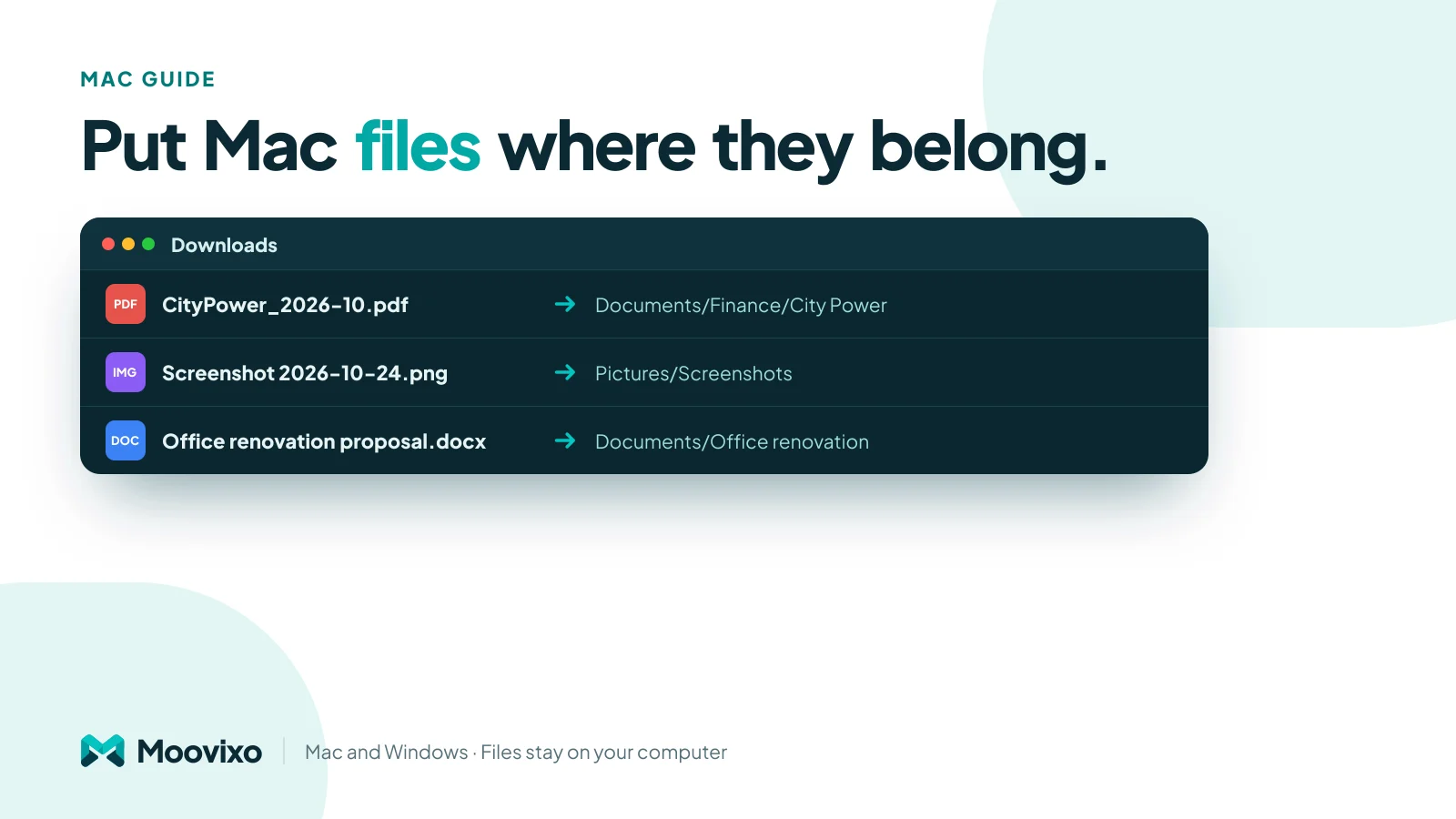
You download another invoice.pdf and leave it beside last month's installer. There are several copies already. None of the names help.
Your Mac has free tools for parts of this job: Folder Actions can move arriving files, Shortcuts can run a filing routine on demand, and Finder can make scattered documents easier to find. Start small. One recurring job, such as filing your electricity bills, is a better test than trying to sort all of Downloads at once.
Use a folder action for predictable downloads
In Automator, you can attach a Folder Action workflow to a folder. When files arrive, the workflow filters them and passes the matches to another action, such as moving them to your bills folder.
This works best with downloads you can recognize by name. If your electricity provider supplies files named like CityPower_2026-10.pdf, a rule for that prefix makes sense. A rule for every PDF just puts bills, appliance manuals and train tickets into a different pile. Same mess, new location.
Use the destination you already have. There's no need to build a new folder structure for one automation:
Downloads/
Documents/
  Finance/
    City Power/
Don't attach your first attempt to Downloads. Create a folder called Folder Action test and a separate destination called Filed test, then try the workflow with copies, not originals.
- Open Automator and choose New Document → Folder Action.
- Use the folder selection control at the top of the workflow to select
Folder Action test. - Add Filter Finder Items. Require all conditions to match, with a name beginning with
CityPower_and a file extension ofpdf. - Add Move Finder Items after the filter and choose
Filed testas the destination. Leave the option to replace existing files turned off. - Save the workflow, then add test copies to the watched folder. Check that matching files move and unrelated ones stay put.
Test a name collision before using this on real files. Put a test PDF in the destination, then add a different PDF with exactly the same name to the watched folder. Open both afterward. Neither should have been replaced. If either disappears, or you can't tell what happened, stop there and don't attach the workflow to Downloads.
A file arriving in a folder doesn't necessarily mean the browser has finished writing it. Don't assume a basic Folder Action waits. Until you've checked its behavior with your browser, use a staging folder where you place completed files yourself.
This handles new arrivals, not the backlog. For the first cleanup, follow the Downloads cleanup guide. Building rules for years of miscellaneous files usually takes longer than sorting them once.
Use Shortcuts for a filing routine you start
For occasional filing, a shortcut you run from Finder may be enough. You select the files and start the routine yourself. That gives you a chance to check the batch before anything moves.
In Shortcuts, configure the shortcut as a Finder Quick Action that receives files. Add a filter for a predictable name pattern, such as CityPower_, then a Move File action with your bills folder as the destination. Keep the filter narrow. One recurring batch is easier to check than a shortcut meant to sort everything you download.
Build it with the same test folders and copies used above. Leave any overwrite option off, and test two different files with the same name before using it on originals. Shortcuts and Automator may handle collisions differently, so a successful test in one isn't enough to trust the other.
A Finder Quick Action isn't a folder watcher. Making the shortcut available in Finder doesn't make it run whenever Downloads changes. That needs a separate trigger.
For a few batches a month, setting up that trigger probably isn't worth it. Selecting several bills and running one shortcut saves repeated trips to the same destination folder, while still giving you a chance to spot the unrelated PDF before it goes along for the ride.
Use smart folders to find files without moving them
In Finder, open the folder you want to search, then choose File → New Smart Folder. Check the search scope and add criteria for PDFs with invoice in the name. Save the search. If you'll use it often, add it to the Finder sidebar.
A Smart Folder saves the search, not copies of the files. An invoice in Downloads stays there. Another in Documents can appear in the same view if you use a broader scope, such as This Mac, and both locations are searchable.
That's useful for scattered paperwork. But this particular search won't catch an invoice called scan00034.pdf, and it won't rename anything or file new downloads. Use it as a view of your files, not a substitute for putting them away.
Use Stacks to group the Desktop
Click an empty part of the Desktop, then choose View → Use Stacks. To group files by type, choose View → Group Stacks By → Kind.
Stacks gathers Desktop items into groups you can expand. Nothing gets filed elsewhere. Bills don't move into Finance, and screenshots don't go into project folders.
It's a reasonable fix for a crowded screen, but it doesn't organize Downloads. Grouping by kind also leaves an electricity bill beside every other PDF. If you need to retrieve paperwork by provider or client, you'll still need folders for that.
Use rules when the files are predictable
Rule-based filing apps watch a folder, check conditions and perform an action. If you have several recurring filing jobs, keeping their rules in one app may be easier than maintaining separate Automator workflows.
CityPower_2026-10.pdf is a good candidate. The prefix tells the rule where it belongs. The changing month doesn't matter. Some apps can also check dates, other file properties or text inside documents, so rules aren't limited to names and extensions.
The work is in maintaining them. Your provider changes its download names to statement.pdf, and the old rule stops matching. A document mentions two clients, and a text-based rule needs an exception. Someone has to notice.
If your downloads are consistent and you prefer explicit instructions, that's a fair trade. Keep a working rule. There's no reason to replace it just because another method sounds more sophisticated.
Read the document when the name isn't enough
A file called scan00034.pdf gives a name-based rule almost nothing to work with. The useful clues are inside: the supplier, the invoice date and who it's billed to.
Moovixo reads those clues, along with names and dates, on your Mac. Scanned PDFs count too. It prefers folders you already use, so an electricity bill can go alongside earlier bills rather than into a general PDF folder.
The first run shows a plan without moving anything. After setup, confident moves can happen automatically, less certain suggestions wait in Review with reasons, and files it can't place are left alone. Every move is recorded for undo. Check the plan before approving it, because reading a document doesn't settle every filing decision.
There are limits. Privacy mode stops it reading contents, leaving decisions based on names and dates, while online-only iCloud files are judged by name and aren't downloaded. If you receive only a few predictably named files each month, a Folder Action or a shortcut you run yourself may be enough.
If vague scans and mixed paperwork are what keep piling up, you can try Moovixo and check its first-run preview against your own files.
Keep reading
How to organize tax documents for your accountant
Gather the records your accountant needs, sort them by tax year, and send a checked set with a clear note about anything missing.
A digital filing system for small business
Set up business folders for clients, finance, HR and legal paperwork, with clear names, sensible access and a yearly handover to your accountant.
How to find duplicate files on Mac
Find duplicate downloads, check identical files in Terminal, and set extra copies aside without deleting something you still need.