
How to organize files on your computer
Build a folder setup for work and home, with clear file names, one inbox and an archive. The same approach works on Mac and Windows.
A project brief is in Documents, its images are in Pictures, and the invoice is still in Downloads. Finding the whole set means looking in three places.
Keep related files together, regardless of their format. On Mac or Windows, a few clearly named folders and one place for documents you haven't filed yet are enough to start.
Keep related files together
Organize by what a file belongs to, not by the app that opens it. A folder called PDFs might contain a dentist's estimate, a client contract and a washing machine manual. Same format. Different reasons to look for them.
A project folder can hold its brief, spreadsheets, images and invoice. Household insurance documents belong with your other insurance paperwork, even if one is a Word document and another is a scan.
Ask where you'd look for the file in six months. Put it there. You don't need a separate category for every kind of document.
Start with five top-level folders
Inside Documents, try Work, Home, Money, Inbox and Archive. That gives you room for current projects, household paperwork and finances, plus somewhere to put unfiled documents and finished work.
Documents/
  Work/
    Clients/
      Northfield Studio/
        Website refresh/
  Home/
    Insurance/
    Appliances/
  Money/
    2026/
  Inbox/
  Archive/
    2025/
These are examples, not required names. Keep a useful Clients folder if you already have one, rather than creating Work/Clients alongside it and leaving yourself two possible destinations for the next brief. Likewise, Personal can do the job of Home.
Add subfolders when browsing gets awkward. Not before. One appliance manual doesn't need three levels of folders, but several appliances, each with a receipt, manual and warranty, probably justify a folder per appliance.
Some documents fit in two places. Pick one home for the original: Website refresh if you look for an invoice by project, or Money/2026 if you look by accounting year. Either choice works, provided you stick to it.
For a finance structure that separates receipts, sales and expenses, see organizing invoices and receipts. The rest of your folders may not need that much detail.
Use dates and names you'll recognize later
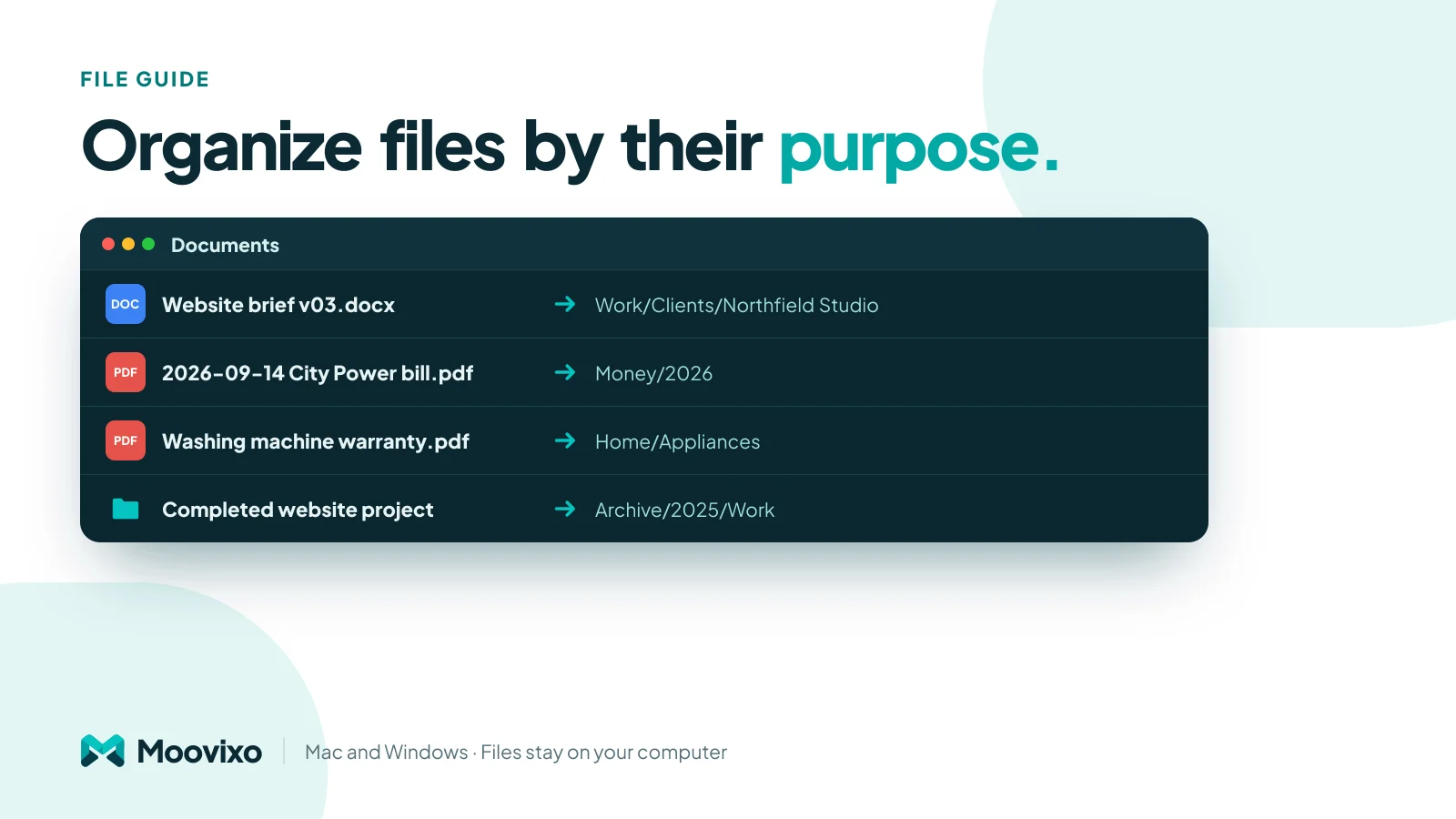
A name should let you recognize a file without opening it. scan00034.pdf tells you almost nothing, while 2026-09-14 City Power bill.pdf gives you the date, company and purpose.
For dated paperwork, use YYYY-MM-DD. Year first. Files named this way sort chronologically when you sort by name. Use the date printed on the document, not the day you happened to download it.
Not every file needs a date. A reusable template can simply be Client proposal template.docx. For working revisions, Northfield website brief v03.docx tells you more than brief-final-final.docx, especially if someone else edits the files too. Agree on when to start a new version.
Keep the extension unchanged. Replacing .pdf with .docx doesn't turn a PDF into a Word document. For names that travel between Mac and Windows, stick to letters, numbers, spaces, hyphens and underscores. Avoid slashes, colons, question marks and other punctuation that can cause filename problems.
Leave linked project assets alone unless you know how to update their references. A layout, video project or spreadsheet may depend on another file keeping its name and location.
Give unfiled documents one inbox
Use Documents/Inbox for loose documents whose destination isn't clear yet. It's a holding place. Don't treat it as another permanent category.
Downloads can remain the arrival point for browser downloads, but it shouldn't become a second filing system where half your bills live. Move files straight to Home or Work when you know where they belong. Sending everything through Inbox just adds a step.
Review what's left once a week. Open uncertain documents before deciding where they go, especially scans with vague names. If the same kind of document keeps stalling, choose a home for it rather than reconsidering each file from scratch.
Inbox still growing? Look for a missing destination or a folder structure that's too complicated. For the separate job of clearing old downloads, use the Downloads folder cleanup guide.
Move your existing files in small batches
Start with current work and paperwork you'll need soon. Create the destination folders, then move one recognizable group: this month's bills, one client's documents or the files for an upcoming trip.
Check that batch before starting another. Open a few files from their new folders and, if you've moved a project, check that it can still find its linked material. Ten moves are easier to check than several hundred.
Don't spend a weekend renaming ten years of documents before using the new structure. Old files with adequate names can stay that way. Rename them when you need them, or when a particular group becomes difficult to search.
Keep project folders together. Leave application libraries, installed software and system folders alone, since moving their contents can break things. You're organizing your own documents, not rearranging the whole disk.
Finder or File Explorer will do. The folder choices matter more than the tool you use to move files. For Mac sorting and browsing options, see how to organize files in Finder.
Archive finished work instead of deleting it
When a project is finished, move its folder from Work to Archive. Last year's completed work for a client might go under Archive/2025/Work/Northfield Studio. Include Work beneath the year only if it helps you browse.
Archive files because they're finished, not just because their modification dates are old. A current insurance policy may not have changed for months, and an appliance manual can remain useful for years. Keep reference material where you'd normally look for it.
An archive clears space in your everyday folders without forcing a deletion decision. It doesn't free disk space. A file moved elsewhere on the same disk still takes up room.
Nor is an archive a backup or a rule for how long to retain financial and legal documents. Those are separate decisions. Back up important files before a large reorganization, and keep backing them up afterward. A neatly arranged folder is still only one copy.
Let an organizer maintain the folders you chose
If the structure makes sense but daily filing keeps slipping, Moovixo can help. It uses your existing folders and reads document contents on your computer to work out destinations, rather than putting every PDF in one pile.
The first run is a preview. Afterward, confident moves can happen automatically, less certain suggestions wait in Review, and unclear files stay where they are. Moves are recorded and can be undone. See how Moovixo chooses a folder and when it asks you for the details.
You still need to settle choices such as whether an invoice belongs with its project or your accounts. Moovixo can learn from corrections, but it can't know an unstated preference. If you only save a few documents a month, the folders and a short inbox review may be all you need.
Keep reading
How to organize tax documents for your accountant
Gather the records your accountant needs, sort them by tax year, and send a checked set with a clear note about anything missing.
A digital filing system for small business
Set up business folders for clients, finance, HR and legal paperwork, with clear names, sensible access and a yearly handover to your accountant.
How to find duplicate files on Mac
Find duplicate downloads, check identical files in Terminal, and set extra copies aside without deleting something you still need.